Social MediaSocial Media Marketing
SHORT ANSWER
A YouTube description is the text YouTube shows with a video or on a channel. There are two kinds, and they do different jobs: the video description sits under each video, and the channel description sits on your channel’s About tab.
Key Takeaways
- Your description helps YouTube match a video to searches and helps viewers decide whether to press play. It supports the title and thumbnail; it doesn’t replace them.
- Video descriptions hold up to 5,000 characters and channel descriptions up to 1,000. Only the first line or two show before “Show more”, so lead with the point.
- Chapters need a first timestamp of 00:00, at least three timestamps, and every chapter at least 10 seconds long.
- Use three to five relevant hashtags, and make paid-promotion and altered-content disclosures in YouTube Studio’s settings, not only in the text.
- Links in Shorts descriptions aren’t clickable, so send viewers to a long-form video or your channel links instead.
What is a YouTube description?
If you’re wondering what the description on YouTube is, it’s the text YouTube shows alongside a video or on a channel’s page. There are two kinds, and they do different jobs: the video description sits under each video, and the channel description sits on your channel’s About tab.
Where is the description in YouTube, and how do you add it?
- Purpose: Explains what one video covers, so viewers can decide whether to watch and YouTube gets more context about the topic.
- Where it lives: Below the video, on its watch page.
- Character limit: Up to 5,000 characters. Only the first couple of lines show before “Show more”.
- What it usually includes: A short summary, timestamps, a call to action, links, and hashtags.
YouTube channel description
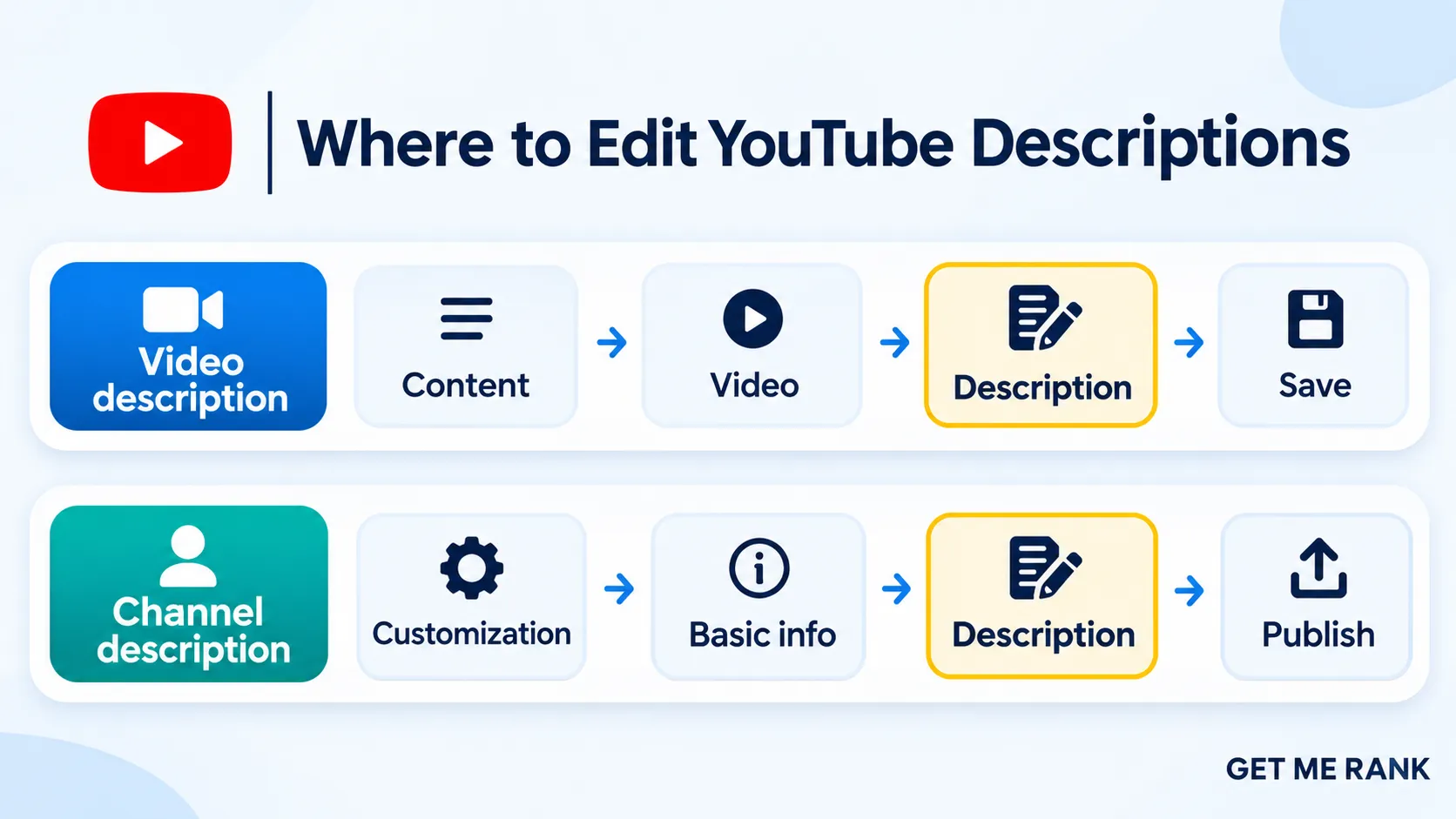
For a video: Open YouTube Studio, go to Content, and click the video. Type your text in the Description box, then click Save.
For your channel: In YouTube Studio, open Customization, then Profile. Add your text in the Description box and publish.
YouTube Description: How to Write One That Gets More Views
Menu names can change slightly, so check them against your own Studio before publishing.
How long can a YouTube description be?
A video description can hold 5,000 characters. Most don’t need anywhere near that. What matters more is the opening: YouTube doesn’t publish an exact cut-off and the visible part changes with the device, but plan on your first 100 to 150 characters being the only part many people read.
Give every video its own description. YouTube’s help page recommends a unique one for each video, because it makes the video easier to find and helps it stand out from similar ones.
You can also make a long description easier to scan. Start a line with *, +, or – followed by a space to create a bullet list, and use the formatting options at the bottom of the description box on a computer.
Does a YouTube description help you get more views?
Yes, as a supporting signal. YouTube says its search results depend on how well your title, tags, description, and the video itself match what someone searched for, along with how viewers engage with the video. The description gives YouTube extra context in plain words, and it gives viewers a reason to click and keep watching.
What it can’t do is fix a video nobody wants to watch. YouTube also says tags play a minimal role, and that your title, thumbnail, and description matter more.
BALANCED TAKE
A description won’t rescue a weak video. Watch time and viewer engagement still decide how far a video travels, so treat the description as the part that helps the right people find and understand a video that deserves them.
What should you write in a YouTube description?
Cover five things, in this order: a two-line summary, timestamps, one call to action, your links, and hashtags and disclosures at the bottom. Each one is covered below.
Start with a two-line summary
Lead with one or two plain sentences that say what the video covers and who it’s for, with your main keyword in the first sentence. For example: “In this video, I show beginners how to fix a leaking kitchen tap in 10 minutes, using a spanner and a new washer.”
PRO TIP
Read your first two lines on your phone before you publish. If that were all someone saw, would they know what the video covers and why to watch? If not, rewrite it.
Use keywords the way you’d say them out loud
Put your main phrase in the first sentence, then describe the video the way a person would. Natural variations beat repetition. Repeating one phrase ten times reads badly to viewers and doesn’t help the video.
Good things to link to are a playlist of related videos; type your topic into the YouTube search bar and note the suggestions that appear. Those are real searches, and they often give you longer phrases worth using.
GETMERANK TIP
Before we write a word of content, we pick the search phrase and check what already ranks for it. Do the same for a video: search your topic on YouTube first, see what the top results promise, then write a description that matches what the viewer is really after.
Add timestamps so viewers can jump to the part they need
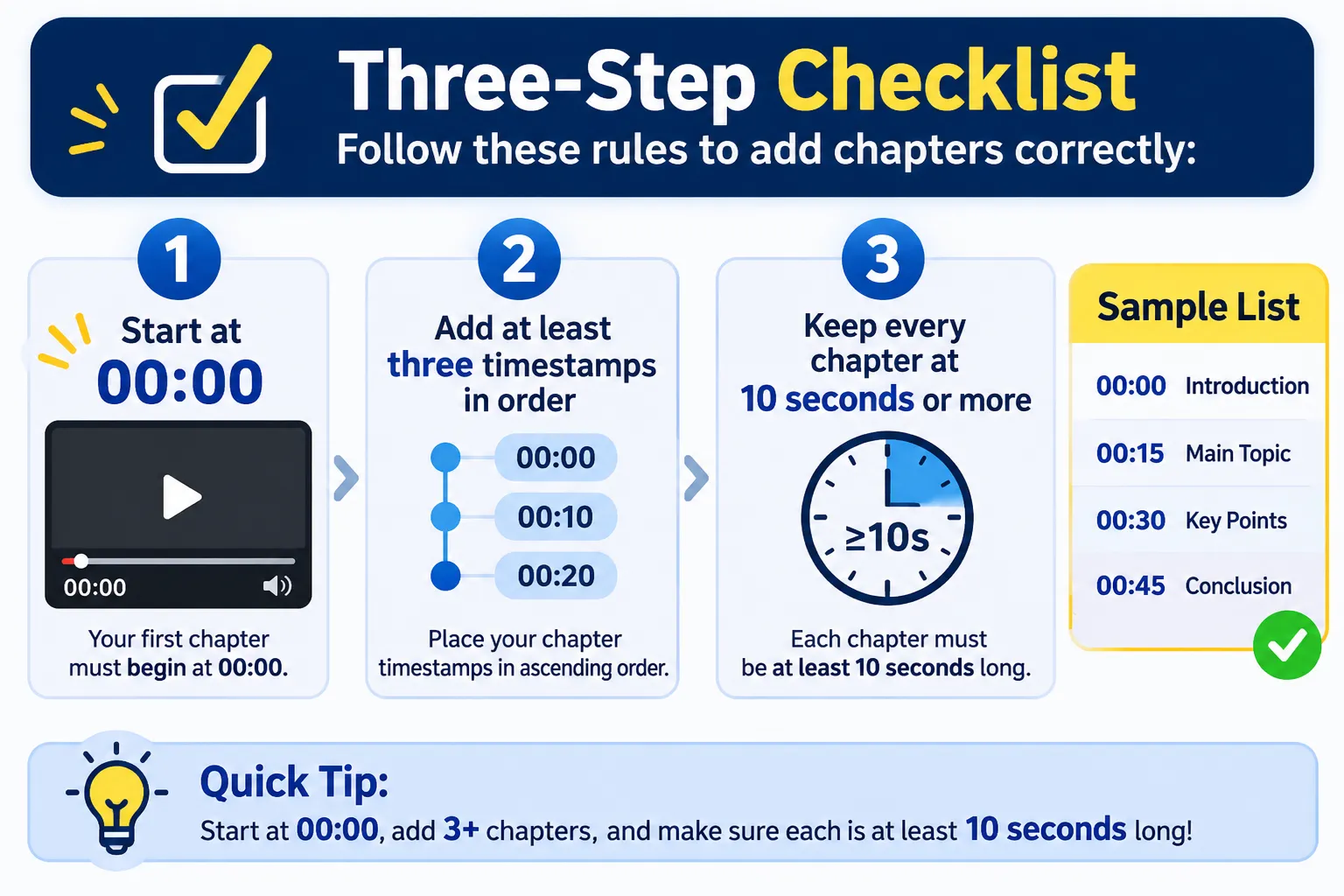
Add a list of timestamps with short titles, and YouTube can turn them into chapters. Your list has to follow three rules:
- The first timestamp must be 00:00.
- You need at least three timestamps, in ascending order.
- Each chapter must be at least 10 seconds long.
Here’s the format:
00:00 Intro
00:45 Turn off the water
02:10 Remove the old washer
05:30 Test for leaks
Name each chapter after what the viewer wants from it, such as “Remove the old washer” instead of “Part 2”. Chapters you add yourself override automatic chapters, and you can opt out of automatic chapters in YouTube Studio.
Add one clear call to action and your links
Ask viewers to do one thing, such as watch a related video, subscribe or visit a page, and put the link straight after it. One clear ask works better than five competing ones.
Use three to five relevant hashtags
Add three to five hashtags at the end of the description that match the video’s topic. YouTube can show up to three of them above your title, and each one links viewers to other videos using the same tag. Skip trending hashtags that have nothing to do with your video.
DID YOU KNOW
YouTube ignores every hashtag on a video if it has more than 60? Plenty of older guides still quote 15, but YouTube’s help page now puts the limit at 60. You’ll never need that many, and the more you add, the less relevant each one becomes.
Add credits and disclosures
Use the description for credits, and use YouTube Studio’s own settings for disclosures.
- Paid promotion: If your video includes a product placement, sponsorship or endorsement, tick the paid promotion box in the video’s details. You and the brand are responsible for following the disclosure rules that apply where you operate.
- Altered or synthetic content: If your video contains realistic content that was meaningfully altered or generated, answer Yes to “Altered content” in the upload details. You don’t need to disclose clearly unrealistic or animated content, or AI used only as production assistance. Some guides tell you to write an AI line in the description, but the requirement is the Studio setting.
- Credits: Name the music, collaborators, tools or sources you used.
YouTube description template you can copy
Here’s a simple template. Replace the brackets and delete what you don’t need.
[Line 1-2: what the video covers and who it’s for, main keyword first]

00:00 Intro
[00:45 First step or topic]
[02:10 Second step or topic]
[05:30 Wrap-up]

[One call to action: “Watch next: link” or “Subscribe for weekly [topic] videos”]

Links
[Playlist or related video]
[Page with more detail]
[Social profile]

Credits
[Music, collaborators, tools, sources]

#[Topic] #[Niche] #[Format]
PRO TIP
Save the template in YouTube Studio under Settings > Upload defaults > Basic info, so every upload starts with it. Then rewrite the first two lines and the timestamps each time. A description that’s identical on every video wastes the part that does the most work.
YouTube description examples by video type
There’s no single best YouTube description. The structure stays the same for any video, but the tone and focus change, so a useful YouTube description example always depends on who is watching and what you want them to do next. The examples below are illustrative, not taken from real channels. You’ll find real ones further down, under “Learn from real channels.”
Weak vs strong
Weak: “Watch this! Like and subscribe.”
Strong:
Geyser not heating? Try these 3 quick checks before you call a plumber. This one is for homeowners and tenants who want a simple fix first. 00:00 Why your geyser stops heating 00:45 Check the power and the MCB 02:10 Reset the thermostat 04:30 When to call a technician Watch next: How to descale your geyser at home [link to video] New home-fix video every week. Subscribe so you don’t miss the next one.
Tutorial
Tone: Clear and step-by-step. Focus: Helping the viewer finish a specific task.
How to set up a new Bluetooth keyboard in five minutes: pairing, connecting to two devices, and mapping your first shortcut. 00:00 Intro, 00:40 Pair the keyboard, 02:15 Connect a second device. Watch next: how to clean a mechanical keyboard.
Product review
Tone: Honest and specific. Focus: Who the product suits and who should skip it.
I used this [product] for 30 days. Here’s who it suits, who should skip it, and what I’d change. 00:00 Verdict first, 01:20 What’s good, 04:00 What’s not. Disclosure: this video includes paid promotion.
Vlog
Tone: Personal and relaxed. Focus: A hook for the story, plus where to find more.
A week in [city] on a tight budget: what I ate, where I stayed and what I’d skip next time. New vlogs every Friday. Subscribe so you don’t miss the next one.
Business or brand video
Learn from real channels
Made-up examples only go so far, so here is how real channels apply the same structure.
Learn from real channels
Made-up examples only go so far, so here are two real channel headers from Indian creators and what each one does well.
Sourav Joshi Vlogs
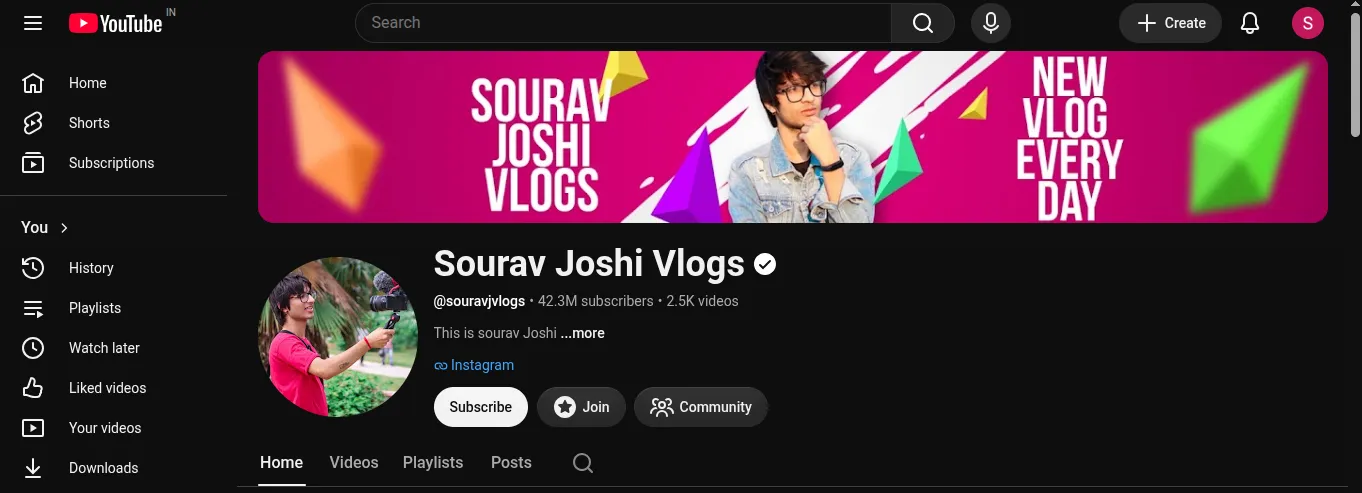
The visible description is only a few words, so this one is a lesson in links and promises rather than in copy. It points to one clearly labelled link (Instagram) instead of a pile of URLs, and the banner states the upload promise, “new vlog every day.” With 42.3M subscribers, a short intro works. A smaller channel should use that first line to say who the channel is for and what it posts.
Credit: Sourav Joshi Vlogs (@souravjvlogs), screenshot taken 5 November 2026.
UPSC IAS English
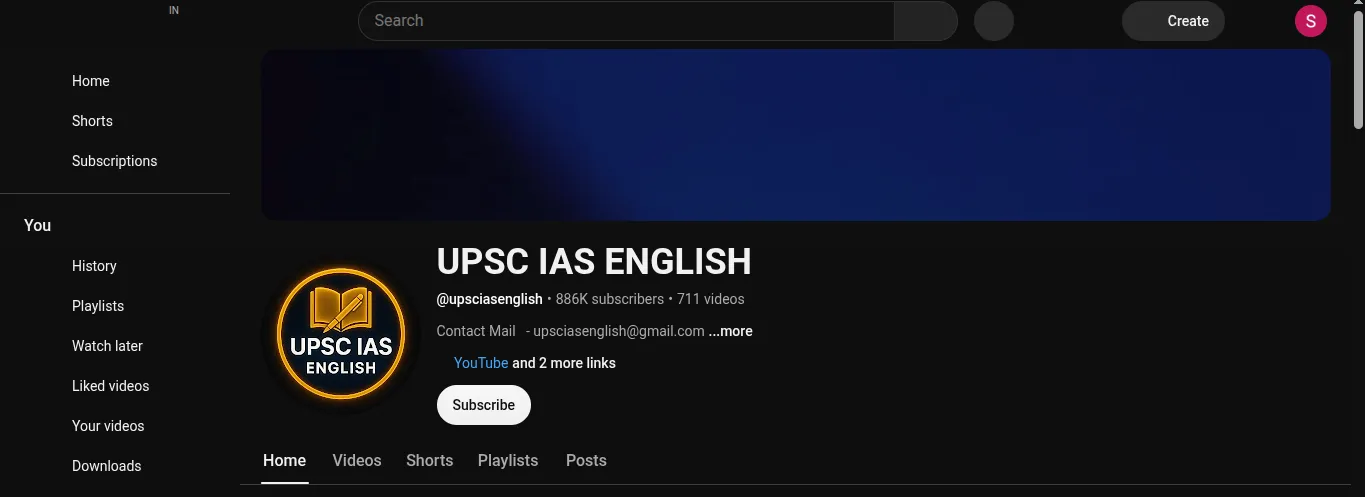
The description opens with a business email, so students and brands can reach the team without searching for contact details. The header also shows “YouTube and 2 more links,” which keeps the extra destinations tidy. It’s a good model for the “business email” tip above.
Credit: UPSC IAS English (@upsciasenglish), screenshot taken 5 November 2026.
How do you write a YouTube channel description?
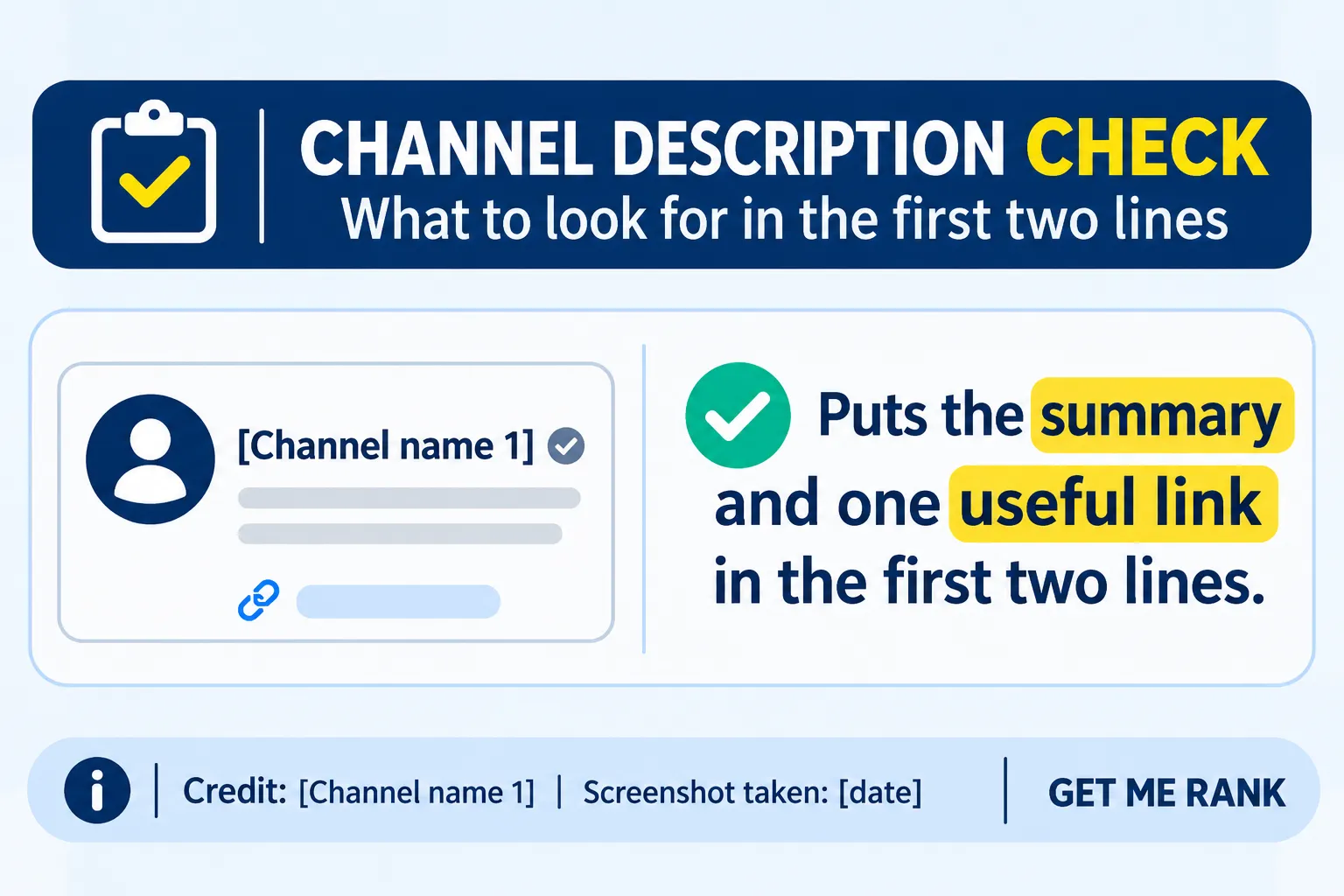
Say who the channel is for, what you post and how often, then end with one call to action. Keep it within 1,000 characters and put your most important line first, because only the opening shows in most places.
What to include
- Who the channel is for and what they’ll get from it.
- The kind of videos you post, such as tutorials, reviews, or weekly vlogs.
- How often you post, but only if you’ll stick to it.
- A business email, so brands and customers can reach you.
A simple formula
“I help [audience] [get a result] with [type of video]. New videos every [day]. [Call to action].”
YouTube bio ideas by tone
A YouTube bio description doesn’t have to sound corporate. For regional audiences, write the bio in Hindi or Hinglish, or add a translation using the Add language option.
Pick the tone that fits your audience:
- Professional: “Practical marketing tutorials for small business owners. New videos every Tuesday. Subscribe for step-by-step guides.”
- Friendly: “Hi, I’m [name]. I make easy home-cooking videos for people who’d rather not spend hours in the kitchen. New recipes every weekend.”
- Short and punchy: “Budget travel, no fluff. Weekly videos from [region].”
YouTube Channel Description Examples You Can Copy
An attractive description for a YouTube channel names the viewer and the payoff in the first line. Here are two illustrative examples.
- Tutorial channel: “Simple tech tutorials for beginners: phones, laptops and apps explained without jargon. New videos every Wednesday. Subscribe, and drop a request in the comments.”
- YouTube gaming channel description: “Weekly co-op gameplay, honest reviews and beginner tips for [game]. Live streams on Saturdays. Join the squad and tell me which game to play next.”
PRO TIP
Write the way your customers talk, not the way your industry does. Your YouTube bio, Instagram bio, and Google Business Profile description should all describe your business the same way. For a local business, our guide to ranking your GMB on the first page of Google shows what a weak and a strong description look like.
How do you add or edit a YouTube description?
You add or edit both types in YouTube Studio.
For a video description:
- Sign in to YouTube Studio and select Content.
- Click the video you want to edit.
- Edit the text in the Description box, then select Save.
On the YouTube Studio app, open Content, choose the video, and tap the edit icon.
For a channel description:
- In YouTube Studio, select Customization from the left menu.
- Open the Basic info tab and enter your text in Description.
- Select Publish.
The same Basic info tab lets you add translations of your channel name and description. You can also edit them from your phone: in the YouTube app, tap your profile picture, then View channel, and tap Edit under your channel description. In the YouTube Studio app, tap your profile picture, tap Edit, and use Edit next to your description.
To change a video description on mobile, open the YouTube Studio app, tap Content, select the video, tap Edit, update the Description box, and tap Save.
GETMERANK TIP
After you change a description, write down the date and compare impressions and click-through rate in YouTube Studio over the same number of days before and after. That’s how we treat every optimization: change one thing, note it, and judge over weeks rather than days.
How do you write descriptions for YouTube Shorts?
Keep a Shorts description to one or two sentences that name the topic, add a few relevant hashtags, and move links elsewhere. Many viewers won’t expand the description, so the title and your first sentence do most of the work.
DID YOU KNOW
In Shorts, descriptions have been non-clickable since 31 August 2023? YouTube made the change to cut down on spam and scams, so a URL pasted into a Short appears as plain text. Channel profile links are the main alternative.
YouTube description mistakes to avoid
When writing YouTube video descriptions, avoiding key metadata and optimization errors helps improve search visibility and viewer engagement:
- Leaving it blank, or writing only “watch this”.
- Starting with a long intro or a wall of links before saying what the video is about.
- Repeating the same keyword over and over, or copying tags from other creators.
- Adding trending hashtags that don’t match the video.
- Pasting the same description on every video.
- Skipping credits, paid-promotion, and altered-content disclosures.
- Leaving old links and upload schedules in place after they stop being true.
How GetMeRank helps you get more from YouTube and search
At Get Me Rank, we treat video as one part of a wider visibility plan, not a separate channel. Our team produces UGC ad videos and short-form content, then writes the titles, descriptions, and chapters that help those videos get found. Our social media marketing team handles the posting and management around them. For businesses with a backlog of videos, we often start by rewriting the descriptions on the top 10 videos. It’s one of the quickest wins we see.
If you’re not sure where to start, an audit of your existing videos and web pages is usually the fastest way to see what’s working and where the gaps are.
READY TO GROW?
Want your videos and website working together? Book a free strategy call, and we’ll look at your content and show you where the quickest wins are.
Frequently Asked Questions
1. Should you use AI to write a YouTube description?
You can use it for a first draft, but rewrite the opening lines in your own voice and check every claim. Disclosure is a separate matter: if your video contains realistic altered or synthetic content, use the Altered content setting in YouTube Studio.
2. Can you change a YouTube description after publishing?
Yes. You can edit it in YouTube Studio at any time. If a video is already doing well, change one thing at a time and note the date, so you can see what made the difference.
3. Why isn’t the link in my YouTube description clickable?
There are three common causes. Links in Shorts descriptions are never clickable. Your channel may not have access to advanced features, which clickable external links need. Or the link may break YouTube’s external links policy. Check Feature eligibility under Settings > Channel in YouTube Studio.
4. What’s the difference between tags, hashtags and the description?
The description is visible text. Hashtags are clickable keywords that start with # and sit in the title or description. Tags are hidden keywords in the video details, and YouTube says they play a minimal role unless your topic is commonly misspelled.
5. How often should you update your channel description?
Update it whenever something in it stops being true, such as your schedule, your topics or who the channel is for. If nothing has changed, a quick review every few months is enough.
6. Can you translate a YouTube channel description?
Yes. In YouTube Studio, open Customization, then Basic info, and use Add language to enter translations of your channel name and description.
7. Can Get Me Rank optimize descriptions on videos we’ve already published?
Yes. We audit your existing videos and start with the ones that already get views, because a better description on a video people already find is the quickest improvement. We then rewrite the opening lines, add chapters, tidy the links and fix the hashtags.
Conclusion
A strong YouTube description is simple: a clear opening, helpful timestamps, one call to action and a few honest hashtags. Write it for the viewer, keep it accurate, and update it when your content changes. Do that on every upload and your videos become easier to find and easier to choose.