
Paid Advertising
Key Takeaways
- Meta Business Suite brings everyday Facebook and Instagram management — content, scheduling, messaging, insights, and team access — into one central workspace.
- Businesses can create, preview, and schedule posts for both platforms from a single place instead of managing each activity separately.
- The Insights section helps teams understand what content is working so future decisions are based on performance, not assumptions.
- Meta Business Suite, Business Portfolio, and Ads Manager serve different purposes — knowing which tool to use for which task prevents confusion.
- A structured workflow — plan, publish, communicate, measure, improve — turns the platform from a publishing tool into a repeatable social media process.
Introduction
Managing Facebook and Instagram for a business involves much more than publishing posts. A social media team may need to create content, schedule posts, respond to customer messages, manage comments, review performance, and control access for different team members.
Meta Business Suite brings many of these everyday activities into one place. It helps businesses manage connected Facebook and Instagram accounts, plan and publish content, communicate with customers, and review social media performance.
Whether you run a small business, manage social media for clients, work in-house, or handle several business accounts, Meta Business Suite can make routine social media management easier to organize.
In this guide, we explain what Meta Business Suite is, what you can do with it, how to set it up, how to schedule Facebook and Instagram content, how to use Insights, how to manage team access, and how it differs from other Meta business tools.
What Is Meta Business Suite?
Meta Business Suite is a workspace designed for managing business activity across Facebook and Instagram.
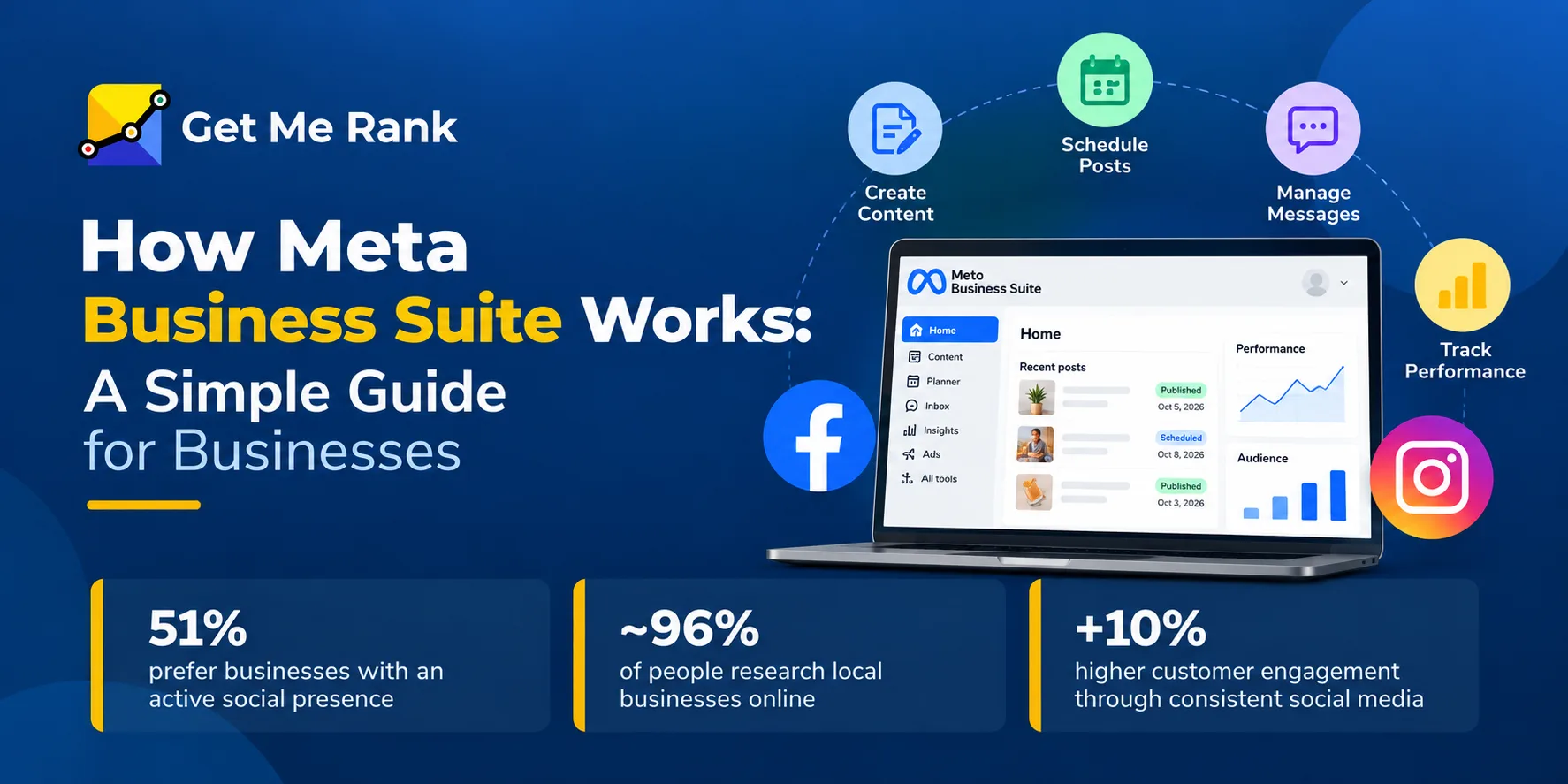
How Meta Business Suite Works: A Simple Guide for Businesses
Instead of switching between different areas to publish content, check messages, respond to comments, and review performance, businesses can manage many of these tasks from a central workspace.
Common uses of Meta Business Suite include:
- Creating and publishing Facebook and Instagram content
- Scheduling posts for future dates
- Managing eligible messages and comments
- Reviewing content performance
- Checking audience and engagement information
- Managing connected business accounts and assets
- Working with team members and permissions
- Accessing certain advertising-related functions
The exact features available can vary depending on the account, connected assets, permissions, platform, and current Meta product availability.
For a social media manager, the main benefit is simple: routine Facebook and Instagram activities can be organized into a more consistent workflow.
What Is Meta Business Suite Used For?
Meta Business Suite is mainly useful for managing the day-to-day activities involved in running a business presence on Facebook and Instagram.
1. Create and Manage Content
Businesses can prepare content for Facebook and Instagram from the same workspace.
Depending on the type of content and account, you can work with:
- Text
- Images
- Videos
- Captions
- Links
- Other supported post formats
Before publishing, the content can be reviewed to make sure the correct account, copy, creative, and publishing options have been selected.
2. Schedule Social Media Posts
One of the most useful features is content scheduling.
Instead of manually publishing every post, a business can prepare content in advance and schedule suitable posts for future dates and times. This can be useful for:
- Weekly content calendars
- Product announcements
- Seasonal campaigns
- Educational posts
- Promotions
- Event announcements
- Regular brand updates
IMPORTANT
Scheduling does not mean you can ignore the account after creating the content. Scheduled posts should still be reviewed regularly because promotions, links, offers, and business information can change.
3. Manage Messages and Comments
Customer questions can arrive through Facebook and Instagram comments and messages.
Meta Business Suite can help teams keep these conversations organized so important questions are less likely to be missed. For example, a customer may ask about:
- Product availability
- Pricing
- Business hours
- Service areas
- Delivery
- Appointments
- General company information
Not every message should receive the same response. Complaints, account-specific issues, and complicated requests may require a personalized response or escalation to another team member.
4. Review Social Media Performance
Publishing content is only one part of social media marketing. Businesses also need to understand what is working.
Meta Business Suite Insights can provide information about areas such as:
- Reach
- Engagement
- Content performance
- Audience activity
- Reactions
- Comments
- Shares
- Link activity
The goal should not be to collect numbers without using them. For example, if educational posts consistently receive more shares than promotional posts, that may be a useful signal when planning future content.
5. Manage Team Access
Businesses and agencies often have several people working on the same social media accounts.
A content writer may need access for content preparation, while a social media manager may need publishing and communication permissions. An administrator may require broader access to business assets and settings.
Managing access according to each person’s role helps reduce unnecessary access and makes account management easier as teams change.
Who Should Use Meta Business Suite?
Meta Business Suite can be useful for different types of users.
Small Businesses
A small business owner can use it to plan content, respond to customers, and review performance without managing every activity separately.
Social Media Managers
Social media managers can use the workspace to organize content calendars, schedule posts, monitor conversations, and review results.
Marketing Agencies
Agencies managing multiple client accounts can benefit from a more organized workflow for publishing, communication, and performance monitoring.
Ecommerce Businesses
Online businesses can use social media content to promote products, answer customer questions, and monitor engagement around campaigns.
Local Businesses
Restaurants, clinics, service companies, retailers, and other local businesses can use Facebook and Instagram to communicate with customers and share updates.
KEY POINT
The right workflow depends on the business, but the basic process remains similar: plan, publish, communicate, measure, and improve.
Meta Business Suite vs Business Portfolio vs Ads Manager
Meta’s business tools can be confusing because they serve different purposes. A simple way to understand them is to separate daily social media management, business asset management, and paid advertising.
| Tool | Main Purpose |
|---|---|
| Meta Business Suite | Manage everyday Facebook and Instagram activities |
| Business Portfolio | Organize business assets, people, and access |
| Meta Ads Manager | Create and manage advanced advertising campaigns |
| Meta Ad Library | Research publicly available advertisements |
Meta Business Suite
Business Suite is primarily focused on everyday social media management, including content, scheduling, communication, and performance review.
Business Portfolio
Business Portfolio is more closely associated with organizing business assets, people, permissions, and access.
Meta Ads Manager
Ads Manager is designed for more advanced paid advertising activities, including campaign setup, targeting, budgeting, optimization, and reporting.
Meta Ad Library
Meta Ad Library is useful when researching publicly available advertisements. Marketers can use it to examine how other businesses communicate offers and present their advertising creative.
These tools are not necessarily alternatives to one another. A business or agency may use several of them for different parts of its marketing workflow.
How to Set Up Meta Business Suite
Before you start publishing content, make sure your Facebook Page, Instagram account, and user permissions are properly organized.
Step 1: Prepare Your Accounts
Make sure you have the Facebook Page and Instagram account you want to manage. If you work with multiple Pages or Instagram profiles, identify the correct accounts before connecting anything. This is particularly important for agencies and businesses that manage several brands.
Step 2: Sign In
Sign in using the Meta account associated with the business activity you want to manage. If you have access to multiple business environments, confirm that you are working in the correct one.
Step 3: Connect Your Business Assets
Add or connect the Facebook Page and Instagram account you want to manage. Check the account names carefully before confirming the connection. This simple step can prevent content from being published to the wrong account later.
Step 4: Review Permissions
Check who already has access to the business accounts and what permissions they have. Only give team members the access they need to complete their responsibilities. For example, someone who only prepares content may not need the same level of access as an administrator.
Step 5: Test the Workspace
After connecting your accounts, open the main areas you expect to use. Check:
- Content
- Planner
- Inbox
- Insights
- Connected accounts
- Business settings
Confirm that the correct Facebook Page and Instagram profile appear. A short test before beginning regular publishing can prevent avoidable account and permission problems.
How to Connect a Facebook Page to Meta Business Suite?
A Facebook Page is often one of the main assets businesses manage through Meta.
Step 1: Open Your Business Settings
Sign in and open the area where your business assets and Pages are managed.
Step 2: Check Existing Pages
Review the Pages already associated with the business. If the Page you need is not available, use the relevant option to add or connect it. You will need the appropriate access to complete the process.
Step 3: Confirm the Page
Once connected, check the Page name carefully. This is especially important when multiple Pages are managed from the same account.
Step 4: Test Content Management
Open the content area and confirm that you can prepare or manage content for the correct Page.
Step 5: Check Communication
Review the available comments and messaging features to make sure customer communication can be managed as expected.
How to Connect Instagram to Meta Business Suite
Connecting Instagram allows eligible Instagram activity to be managed alongside Facebook activity. The available options can vary depending on the account type, permissions, and current Meta features.
Step 1: Open the Business Settings
Sign in and open the area where connected business accounts are managed.
Step 2: Select Instagram
Choose the option to add or connect an Instagram account.
Step 3: Complete the Account Authorization
Follow the available sign-in or authorization process. If additional security verification is required, complete it before continuing.
Step 4: Confirm the Instagram Account
Check the Instagram username carefully after the connection is complete. If your business manages several profiles, make sure you have connected the intended account.
Step 5: Check Available Features
Return to the main workspace and check the available options for:
- Content
- Messaging
- Comments
- Insights
- Scheduling
Before publishing anything, confirm the selected Instagram account one more time.
How to Create and Schedule Posts in Meta Business Suite
Scheduling is one of the most practical ways to organize a social media content calendar. Instead of preparing every post immediately before it needs to go live, you can create suitable content in advance.
Step 1: Choose the Platform
Select the Facebook Page, Instagram account, or both, depending on your content plan. If the content is going to both platforms, review whether the caption, format, creative, and call to action should be adapted for each audience.
Step 2: Add Your Content
Write your caption and upload the required image or video. Before continuing, check:
- Spelling
- Links
- Tags
- Formatting
- Creative
- Call to action
Step 3: Preview the Post
Use the available preview to check how the content will appear. Pay attention to:
- Image or video cropping
- Caption formatting
- Text
- Links
- Overall presentation
Step 4: Select a Date and Time
Choose whether to publish the content immediately or schedule it for a future date and time. Scheduling is especially useful when you already have an approved content calendar.
Step 5: Review Scheduled Content
After scheduling, review upcoming posts regularly. Check for:
- Outdated offers
- Incorrect links
- Duplicate topics
- Changed business information
- Expired promotions
- Content that is no longer relevant
REMEMBER
A content calendar should be managed, not simply filled. A promotion that was correct two weeks ago may no longer be relevant today.
How to Build a Better Meta Business Suite Content Calendar
Scheduling becomes more effective when it is connected to a broader content strategy. A business could organize its monthly content around categories such as:
- Educational content
- Product or service information
- Customer-focused content
- Company updates
- Industry information
- Seasonal campaigns
- Promotional content
Each post should have a clear purpose. For example:
Educational post → answer a customer question
Product post → explain a product benefit
Customer post → build trust or engagement
Promotional post → encourage an action
Industry post → provide useful information
The goal is not to publish simply because there is an empty space in the content calendar.
How to Manage Messages and Comments
Social media management does not stop when a post is published. Customers may respond to posts, ask questions, send direct messages, or leave feedback.
A practical workflow
- Check new messages and comments.
- Identify conversations that need a response.
- Reply with accurate information.
- Escalate complex issues when necessary.
- Review important notifications.
- Follow up on conversations that require additional action.
Businesses can also prepare responses for common questions about:
- Opening hours
- Service availability
- Locations
- Delivery
- Basic product information
- Appointment processes
However, avoid sending the same generic response to every customer. A complaint or account-specific issue usually needs a more personal response.
How to Use Meta Business Suite Insights
Follower count alone does not tell you whether your social media strategy is working. Performance should be reviewed at the content level.
Meta Business Suite Insights can help answer questions such as:
- Which posts reached the most people?
- Which content generated stronger engagement?
- Which topics received more comments?
- Which posts were shared more often?
- How did different content formats perform?
- Which topics should be tested again?
Important Metrics to Review
| Metric | What It Tells You |
|---|---|
| Reach | How many people saw the content |
| Engagement | How people interacted with the content |
| Reactions | Immediate audience response |
| Comments | Conversation generated by the content |
| Shares | Whether people found the content useful enough to share |
| Link activity | Interaction with available links |
| Content performance | Differences between posts and formats |
Don’t judge a social media strategy based on one post. Instead, compare several pieces of content over a consistent period. For example, if educational videos repeatedly receive strong engagement while promotional posts receive less interaction, that pattern can guide your next content plan.
How to Manage People and Permissions
Account access becomes particularly important when several people work on the same business presence. A practical approach is to:
- Add only people who need access.
- Assign permissions according to their responsibilities.
- Avoid giving full control when limited access is enough.
- Review which Pages and accounts each person can access.
- Update permissions when responsibilities change.
- Remove access when someone no longer works on the account.
This is especially important for businesses working with freelancers, agencies, contractors, or temporary team members. Permission management should be treated as an ongoing process rather than a one-time setup task.
Can Meta Business Suite Be Used for Advertising?
Meta Business Suite and Meta’s advertising tools are connected, but they are not the same thing. Business Suite can support certain advertising-related activities, while more advanced campaign management is generally handled through Meta Ads Manager.
If a business wants to run a simple promotion, it may use available boosting or advertising options. For more advanced campaigns involving detailed targeting, campaign structures, budgets, optimization, and reporting, Ads Manager is more appropriate.
A simple distinction
Business Suite: Manage your social media presence.
Ads Manager: Manage your paid advertising campaigns.
Ad Library: Research publicly available advertisements.
Keeping these functions separate makes it easier to choose the right tool for the task.
Common Meta Business Suite Problems and How to Avoid Them
Even with a straightforward setup, businesses can run into account and permission problems.
Instagram Account Is Not Showing
Check whether:
- The correct Instagram account is being used.
- The account has the required setup.
- The correct Facebook Page is connected.
- You have the necessary permissions.
- The connection needs to be reviewed or reauthorized.
Facebook Page Is Missing
First, check that you are working in the correct business environment and that you have the required access to the Page. If multiple Pages are available, verify the Page name before making changes.
You Cannot Schedule a Post
Check:
- Whether the selected account supports the content format.
- Whether you have the necessary permissions.
- Whether the content meets platform requirements.
- Whether there is an issue with the media or post settings.
You Cannot See Insights
Insights availability can vary by account and feature. First, confirm that you are viewing the correct account and have the required access.
Team Member Cannot Complete a Task
Review their permissions. Giving someone access to the business does not necessarily mean they have every permission required for every task.
Common Meta Business Suite Mistakes to Avoid
- Connecting the wrong account. Always check the Facebook Page and Instagram username before confirming a connection.
- Giving everyone full access. Team members should receive the access they actually need.
- Scheduling without reviewing the post. Preview content before it goes live.
- Ignoring messages. Publishing consistently does not replace customer communication.
- Focusing only on followers. Follower growth is only one part of social media performance.
- Ignoring Insights. Without reviewing performance, future content decisions become based largely on assumptions.
- Forgetting scheduled content. A promotion that was correct two weeks ago may no longer be relevant today.
- Keeping old permissions. Remove or update access when employees, freelancers, or agencies stop working on an account.
Best Practices for Using Meta Business Suite
1. Plan Before You Publish
Create a content calendar that defines the topic, platform, format, publishing date, and purpose of each post.
2. Batch-Create Content
Preparing multiple posts in one session can make content production more efficient and reduce last-minute publishing.
3. Adapt Content for Facebook and Instagram
Publishing to both platforms does not mean every post needs to be identical. Consider the audience, format, caption, creative, and purpose of each platform.
4. Review Scheduled Posts
Check upcoming content regularly for:
- Outdated information
- Incorrect links
- Expired promotions
- Duplicate topics
- Changes in business information
5. Respond to Customers Regularly
Create a routine for checking comments and messages so important questions do not remain unanswered.
6. Review Performance Consistently
Look at performance over a meaningful period rather than judging your strategy from a single post.
7. Use Data to Plan Future Content
If specific topics or formats repeatedly perform well, use those observations when planning future content.
8. Review Permissions
Make permission reviews part of regular account maintenance, especially when employees or agencies join or leave the team.
A Simple Meta Business Suite Workflow for Businesses
A repeatable workflow can make social media management easier.
Daily
- Check messages
- Respond to comments
- Review notifications
- Check scheduled content when necessary
Weekly
- Prepare and schedule upcoming content
- Review content performance
- Identify strong-performing topics
- Check upcoming promotions
Monthly
- Review overall social media performance
- Compare content formats
- Identify content opportunities
- Review team access and permissions
- Update the content strategy based on performance
GETMERANK TIP
This approach turns Meta Business Suite from a place where posts are simply published into part of a structured social media process.
Conclusion
Meta Business Suite gives businesses a central way to manage many of their everyday Facebook and Instagram activities.
From creating and scheduling content to responding to customers, reviewing performance, and managing team access, it can make social media work easier to organize.
The biggest benefit does not come from simply publishing more posts. It comes from building a consistent process around planning, publishing, communication, measurement, and improvement.
Whether you are a small business owner, social media manager, marketing agency, or ecommerce brand, a well-organized workflow can help you get more value from your Facebook and Instagram presence.
For businesses that need support beyond day-to-day social media management, an integrated digital marketing strategy can connect social media activity with SEO, content marketing, paid advertising, and other channels. At Get Me Rank, our digital marketing approach focuses on building visibility and generating measurable business results through the right combination of channels.
Frequently Asked Questions About Meta Business Suite
What is Meta Business Suite used for?
Meta Business Suite is used to manage everyday business activity across connected Facebook and Instagram accounts. Depending on the account and available features, this can include content publishing, scheduling, messaging, comments, performance monitoring, and access management.
Is Meta Business Suite free?
The core Meta Business Suite workspace is available without a separate subscription fee. However, advertising and other paid Meta services can involve additional costs.
Can I manage Facebook and Instagram from Meta Business Suite?
Yes. Eligible Facebook Pages and Instagram accounts can be managed through the relevant areas of Meta Business Suite.
Can I schedule posts with Meta Business Suite?
Yes. Eligible content can be prepared and scheduled for future dates and times.
Can I manage Facebook and Instagram messages?
Meta Business Suite can provide access to relevant Facebook and Instagram conversations through its communication features. Available options can vary depending on the account and platform.
What Insights can I see in Meta Business Suite?
Available Insights can include information about reach, engagement, content performance, audience activity, and other performance-related data. The exact information available can vary by account and feature.
What is the difference between Meta Business Suite and Business Portfolio?
Meta Business Suite is primarily focused on everyday social media management, while a Business Portfolio is used to organize business assets, people, and permissions. A business may use both for different purposes.
What is the difference between Meta Business Suite and Ads Manager?
Meta Business Suite focuses mainly on managing social media activity, while Ads Manager is designed for more advanced paid advertising campaign management.
Can multiple people use Meta Business Suite?
Yes. Businesses can provide access to multiple team members and assign permissions according to their responsibilities. Access should be reviewed regularly as team roles change.
Why is my Instagram account not showing in Meta Business Suite?
Start by checking that you have connected the correct Instagram account and Facebook Page and that you have the necessary permissions. Account type, connection status, and available features can also affect what appears in the workspace.
Can agencies use Meta Business Suite?
Yes. Agencies can use Meta Business Suite as part of their social media management workflow. Agencies managing several clients should pay particular attention to account selection and permissions to reduce the risk of publishing content to the wrong business account.
READY TO GROW?
Need help connecting social media with your broader marketing strategy? Book a free consultation and let us build a plan that drives real results across every channel.