
SEO
Key Takeaways
- “Search Google or type a URL” is the hint text inside your browser’s address bar (the Omnibox) — it tells you the box does two jobs.
- Type words or a question and it searches Google; type a web address like bbc.com and it goes straight to that site. The browser works out which you meant.
- If you know the exact website, typing the URL is faster, safer, and more private. If you don’t, searching is the way to go.
- The exact wording changes with your search engine — switch to Bing and it reads “Search Bing or type a URL.”
- In 2026 that same bar also returns AI answers — which is changing how people search and how businesses need to be found.
Introduction
You see it every single day. You open Chrome, a blank box sits at the top of the screen, and inside it, in faint grey letters, a quiet little instruction to search or type a web address. Most of us just start typing and never think about it. But that one line is doing something clever — it’s quietly letting you choose between two completely different ways of getting around the web, and in 2026 it’s started doing a third.
Short answer: “Search Google or type a URL” is the placeholder text in your browser’s address bar, known as the Omnibox. It means you have two options in one box: type keywords to search the web, or type a website address (a URL) to go straight to that site. Your browser automatically tells the difference and responds accordingly.
In this guide we’ll break down exactly what the phrase means, how the Omnibox decides what you want, when you should search versus type an address, a few pro tricks most people never learn, and — importantly — how AI is reshaping that little bar. It’s simple stuff, explained properly, with the 2026 details the other guides skip.
Search Google or Type a URL: Which Is the Better Way to Browse the Web?
DID YOU KNOW
Google handles roughly 8.5 billion searches a day, and Chrome runs on about two-thirds of the world’s browsers. That tiny “search or type URL” box is one of the most-used pieces of software on Earth.
What Does “Search Google or Type a URL” Actually Mean?
Short answer: It means the single bar at the top of your browser accepts two kinds of input. Type words to run a Google search, or type a web address to open that site directly. It’s a hint, not a command — and it disappears the moment you start typing.
Here’s the key thing most explanations miss: it isn’t a vague description someone wrote — it’s the exact placeholder string from Chrome’s source code. That’s why the wording is so consistent everywhere you see it. And because the box uses whatever search engine you’ve set, the middle word changes: on default Chrome it’s “Search Google,” but switch your engine and you’ll see “Search Bing or type a URL” or “Search DuckDuckGo or type a URL.”
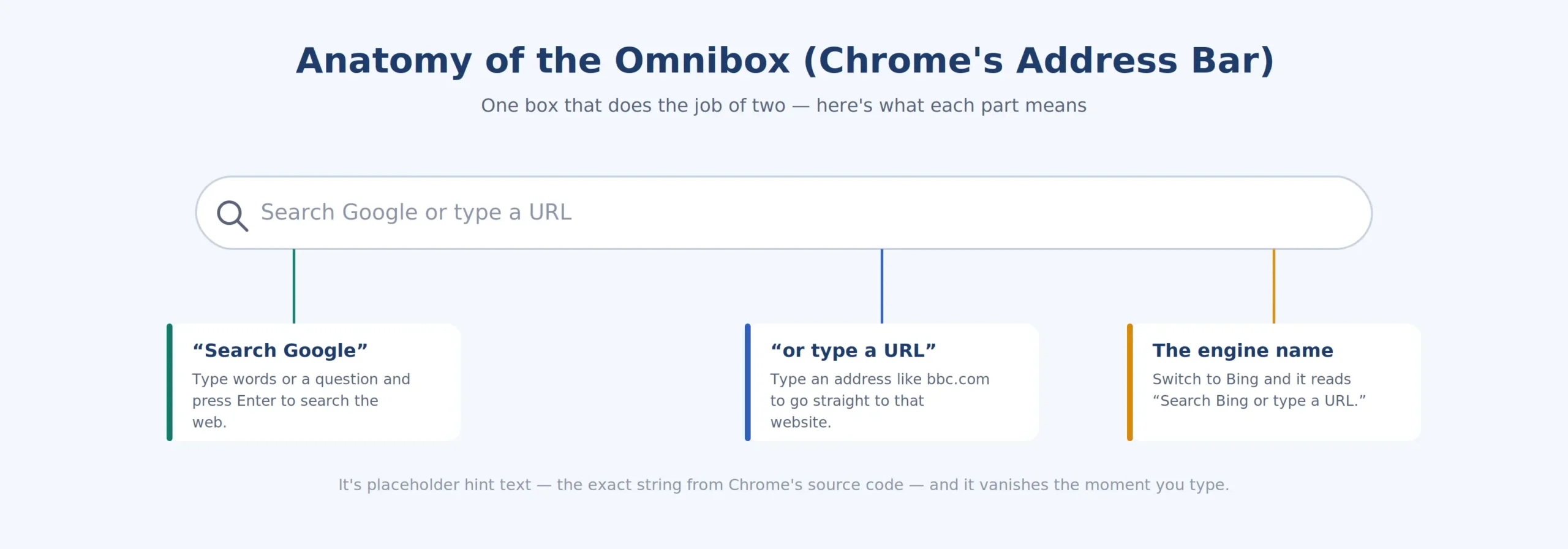
The box itself is called the Omnibox. Years ago, browsers had two separate bars — one for web addresses and one for search. Chrome merged them into a single “omni” (meaning “all”) box, and everyone followed. So when you search or type URL in that one field, the browser reads what you typed and decides: does this look like an address, or like a search? You can even type the URL of Google search itself — google.com — straight into the box to reload a fresh search page.
Where Do You See This Message?
Short answer: You’ll see this message in Chrome’s address bar and on the New Tab page, on both desktop (Windows and Mac) and mobile. Other browsers show their own version of the same hint.
It shows up anywhere the Omnibox is empty and waiting for input — a fresh tab, a new window, or after you clear the bar. On your phone, the Chrome or Google search or type URL app behaves the same way: tap the bar and you get the identical choice between searching and going direct. Edge, Firefox, and Safari each show a slightly different wording, but the idea is identical — one bar, two jobs.
Search Google vs. Typing a URL: What’s the Difference?
Short answer: Searching Google gives you a list of results to choose from — ideal when you don’t know the exact site. Typing a URL takes you straight to one specific website — ideal when you do. One is for discovering; the other is for going.
A quick example makes it obvious. If you type best phones under 30000, you don’t have a destination in mind — you want options, so Google returns a results page. But if you type flipkart.com, you’ve told the browser exactly where to go, and it takes you straight there. Here’s how the two compare across the things that actually matter:
| Factor | Search Google | Type a URL |
|---|---|---|
| Best when | You don’t know the exact site | You know the exact address |
| Speed | Slower — pick from results | Fastest — one step |
| Privacy | Search is logged | More private, nothing searched |
| Safety | Risk of fake/ad look-alikes | Goes to the real site directly |
| Good for | Research, comparison, questions | Banking, email, sites you trust |
Should You Search Google or Type the URL?
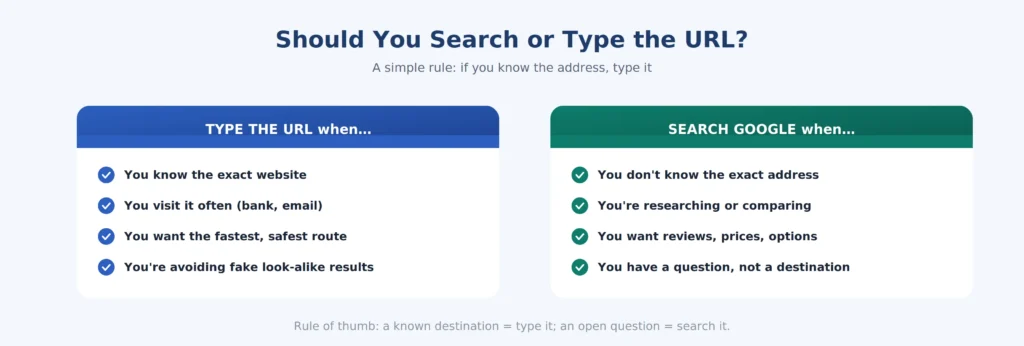
Short answer: If you know the exact website, type the URL — it’s faster, more private, and avoids fake look-alike results. If you don’t know the address, or you’re researching, comparing, or asking a question, search Google instead.
A simple rule: a known destination = type it; an open question = search it.
There’s a small but real safety reason to type addresses you care about. When you search for “my bank login,” the top results can include ads or copycat sites designed to look official. Typing the bank’s address yourself skips all of that and lands on the genuine site. For anything sensitive — banking, email, payments — typing the URL of Google search (that’s simply google.com) or your bank’s address directly is the safer habit.
PRO TIP
Navigational searches — people Googling a brand name instead of typing its address — make up a huge share of all searches. That’s exactly why your business needs to own its own name on Google: if customers search you, a competitor’s ad shouldn’t be the first thing they see.
How Do You Search Google Like a Pro?
Short answer: Use search operators — short commands you type right into the same bar. Put a phrase in quotes for an exact match, use site: to search one website, a minus sign to exclude words, and filetype: to find PDFs. They turn a vague search into a precise one.
Most people type a few words and scroll. A few simple operators get you to the right answer far faster — and they all work in the same box you already use. Here are the ones worth memorising:
| Operator | What it does | Example |
|---|---|---|
| “exact phrase” | Finds pages with that exact wording | “home loan interest rates” |
| site: | Search within one website only | site:getmerank.com seo |
| -word | Remove a word from the results | jaguar -car |
| filetype: | Find a specific kind of file | marketing plan filetype:pdf |
| OR | Match either of two terms | rent OR buy flat |
| intitle: | The word must be in the page title | intitle:omnibox |
| related: | Find sites similar to one you know | related:bbc.com |
How Is the Omnibox Changing in the AI-Search Era?
Short answer: That same bar now does a third thing: it returns AI answers. Many Google searches now show an AI Overview at the top, people increasingly ask full questions out loud instead of typing keywords, and you often get the answer without clicking a single link.
This is the part the older guides miss. When you type a question today, Google often replies with an AI-generated summary right at the top of the page — so the line between “searching” and “getting an answer” is blurring. Voice and mobile push this further: people speak natural questions rather than clipped keywords, and the browser handles it the same way. The box hasn’t changed, but what it gives back has.
What Does This Mean for Your Website?
Short answer: If customers find you by searching rather than typing your address, you need to actually appear in those results — and now in AI answers too. That takes SEO to rank, GEO/AEO to get cited by AI, and owning your brand name so you’re the first thing people see.
Here’s the business reality behind this friendly little phrase. Most people don’t type your exact URL — they Google your name, your service, or their problem. If you’re not there, you simply don’t exist to them. Showing up means ranking in normal search results, and increasingly it means being the source an AI answer quotes. Our guide to the People Also Search For feature is a good next read on how Google reveals what buyers are really looking for.
That’s the whole job of modern search marketing: make sure that when someone chooses to search instead of type, your business is the answer they find — on Google and inside AI. If you’d like to see where you currently show up, GetMeRank offers a free visibility check across search, AI, and the local map.
Is It Safe to Search or Type URLs? (Privacy & Security)
Short answer: Both are safe when you’re careful. Typing a URL is the more private and secure option because nothing is searched or logged. When searching, check the web address before you click — and look for https and the correct spelling to avoid fake look-alike sites.
- Type sensitive sites directly. For banking, email, and payments, type the address yourself instead of searching for it.
- Check the spelling of the domain. Scam sites use near-identical names like “g00gle.com” — read before you hit Enter.
- Look for https. The padlock and “https” mean the connection is encrypted.
- Be wary of the very top result. It may be a paid ad — fine for shopping, risky for logins.
Common Mistakes People Make
A few small habits trip people up at that bar — here’s what to watch for.
- Searching for a site you already know. If you know it’s amazon.in, just type it — don’t search and click.
- Clicking the first result for a login. That’s where fake sites hide; type the address instead.
- Forgetting operators exist. Quotes and site: save real time once they’re a habit.
- Not changing a slow default engine. You can switch the search engine in your browser settings any time.
WANT TO BE THE ANSWER PEOPLE FIND?
When customers search your name or your service instead of typing a URL, GetMeRank makes sure you’re the result they see — across Google, AI answers, and the local map. Get your free visibility audit today.
FAQs About the Omnibox
Conclusion
That faint grey line — “search Google or type a URL” — is one of the simplest and most-used tools on the internet, and now you know exactly what it’s doing. Type an address when you know where you’re going; search when you don’t; use a few operators to search smarter; and remember that, in 2026, the same box increasingly answers you with AI.
For most of us it’s a daily convenience. For a business, it’s a reminder: people are searching for what you offer right now — the only question is whether they find you. Make sure they do.