Digital Strategy
Key Takeaways
- Reverse image search lets you search with a picture instead of words, to find where it came from, what’s in it, or where to buy it.
- Google Lens now powers it all. The old “Search by image” tool has been folded into Lens across every device.
- On desktop, right-click any image and choose “Search image with Google Lens”, the fastest method.
- On Android, Circle to Search lets you long-press and circle anything on screen without leaving the app.
- On iPhone, the free Google app or Chrome does the same job, no special software needed.
Introduction
You’ve seen a photo and wondered: where is this from? Is it real? What is that product? A Google reverse image search answers all three in seconds, by letting you search with the picture itself instead of trying to describe it in words.
The method has quietly modernised. What used to be a clunky “Search by image” button is now handled everywhere by Google Lens, the same technology that identifies plants, translates signs and shops products from a photo. This guide shows you exactly how to do it on a computer, an Android phone, and an iPhone, plus the clever shortcuts most people miss.
Quick reference: the fastest method on each device
| Device | Fastest Way | Good For |
|---|---|---|
| Desktop (Chrome) | Right-click image → Search with Google Lens | Images already on a web page |
| Android | Circle to Search (long-press, then circle) | Anything on your screen |
| Android | Google app → Lens camera icon | Your own photos & the camera |
| iPhone (iOS) | Google app or Chrome → Lens icon | Photos in your camera roll |
Pick the row that matches your device — each method is detailed below.
What Is a Reverse Image Search?
SHORT ANSWER
A reverse image search is a way to search using a picture instead of text. You give Google an image, and it finds where that image appears online, what’s in it, and visually similar pictures — the reverse of typing words to find images.
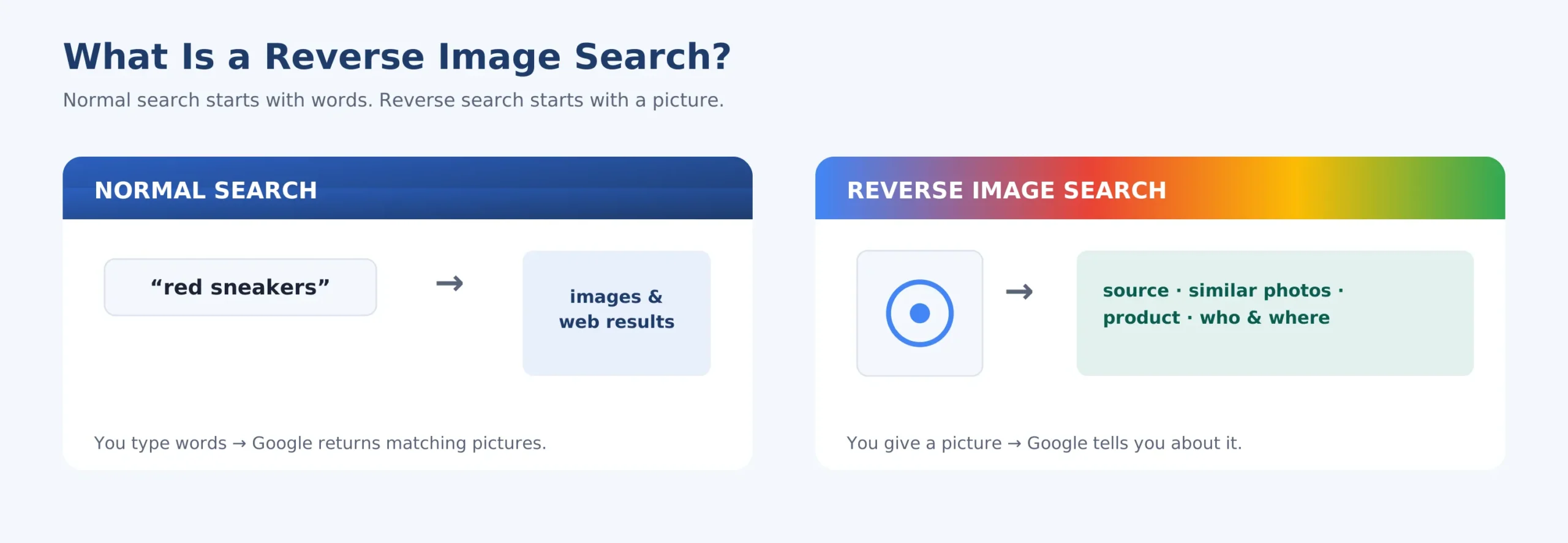
Normal search starts with words; a reverse image search starts with the picture.
Google Reverse Image Search (2026): Find Any Photo’s Source on Any Device
Think of a normal search and flip it. Normally you type “red leather sofa,” and Google shows you pictures. With a reverse search, you hand over a photo of a sofa, and Google tells you the brand, where to buy it, and who else has posted it. It’s one of the most useful tools most people never fully learn.
How Does Google Reverse Image Search Work?
SHORT ANSWER
It runs on Google Lens. When you upload or point to an image, Lens uses AI to recognise objects, text, faces, products and landmarks inside it, then matches them against the web to return sources, similar images and useful context.
Every reverse image search today flows through Lens, whether you realise it or not. You don’t need to understand the AI behind it — just that it “reads” a picture the way you’d read a sentence, then finds everything related to it.
How to Do a Reverse Image Search on Desktop
SHORT ANSWER
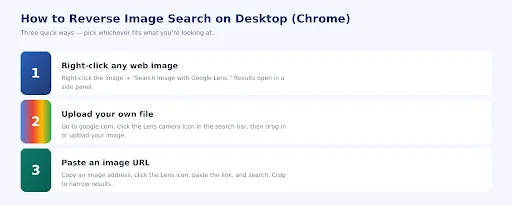
The quickest way on a computer is to right-click any image in Chrome and choose “Search image with Google Lens.” You can also upload a saved file or paste an image URL at google.com.
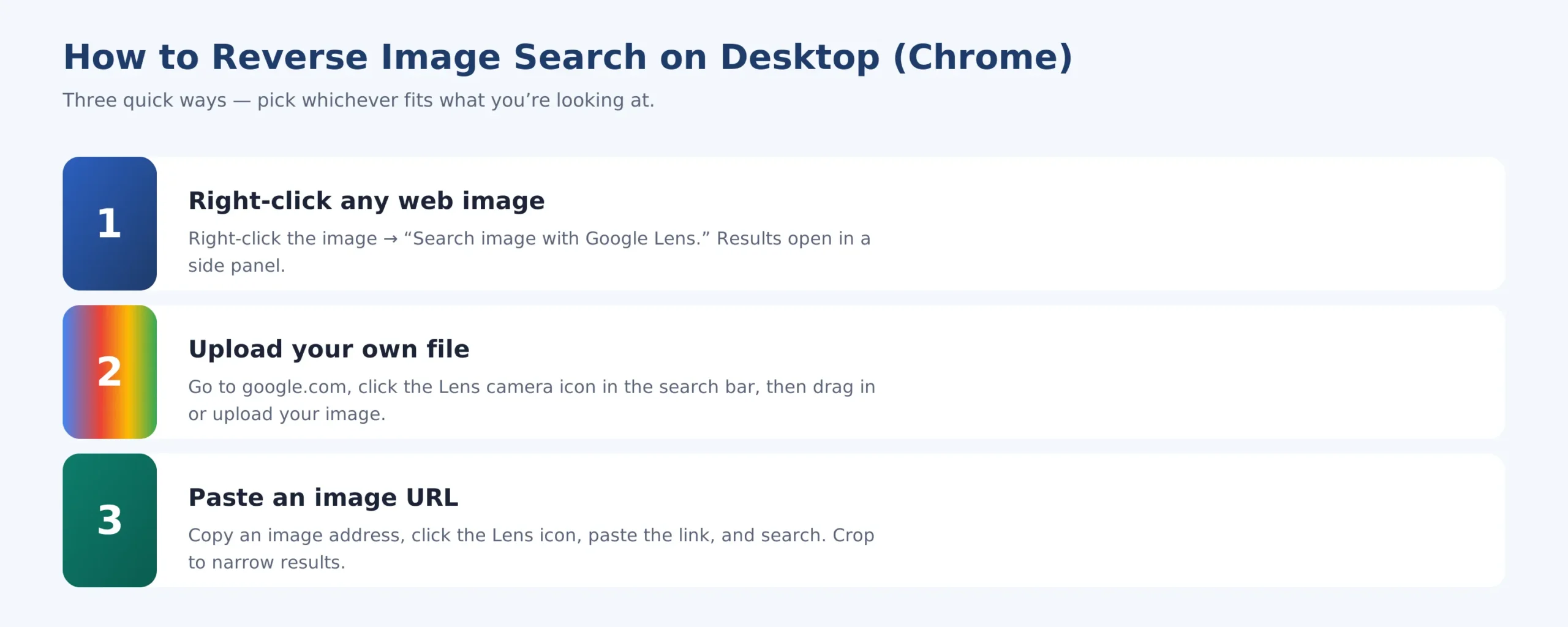
Three Desktop Methods – Right-Click, Upload, or Paste a URL
- Right-click any web image. Right-click the picture and choose “Search image with Google Lens.” Results open in a side panel next to the page.
- Upload your own file. Go to google.com, click the Lens camera icon in the search bar, then drag in or upload an image from your computer.
- Paste an image URL. Copy an image’s address, click the Lens icon, paste the link, and search. Drag the crop handles to focus on one part.
PRO TIP
Cropping is the secret to accuracy. Zoom in on the one object you care about- a logo, a face, a product- and Lens matches that instead of the whole busy image.
How to Reverse Search Images on Google on Android
SHORT ANSWER
Open the Google app or Chrome, tap the Lens camera icon in the search bar, then snap or upload a photo. Learning how to reverse search images on Google on Android takes about ten seconds once you know where the icon is.
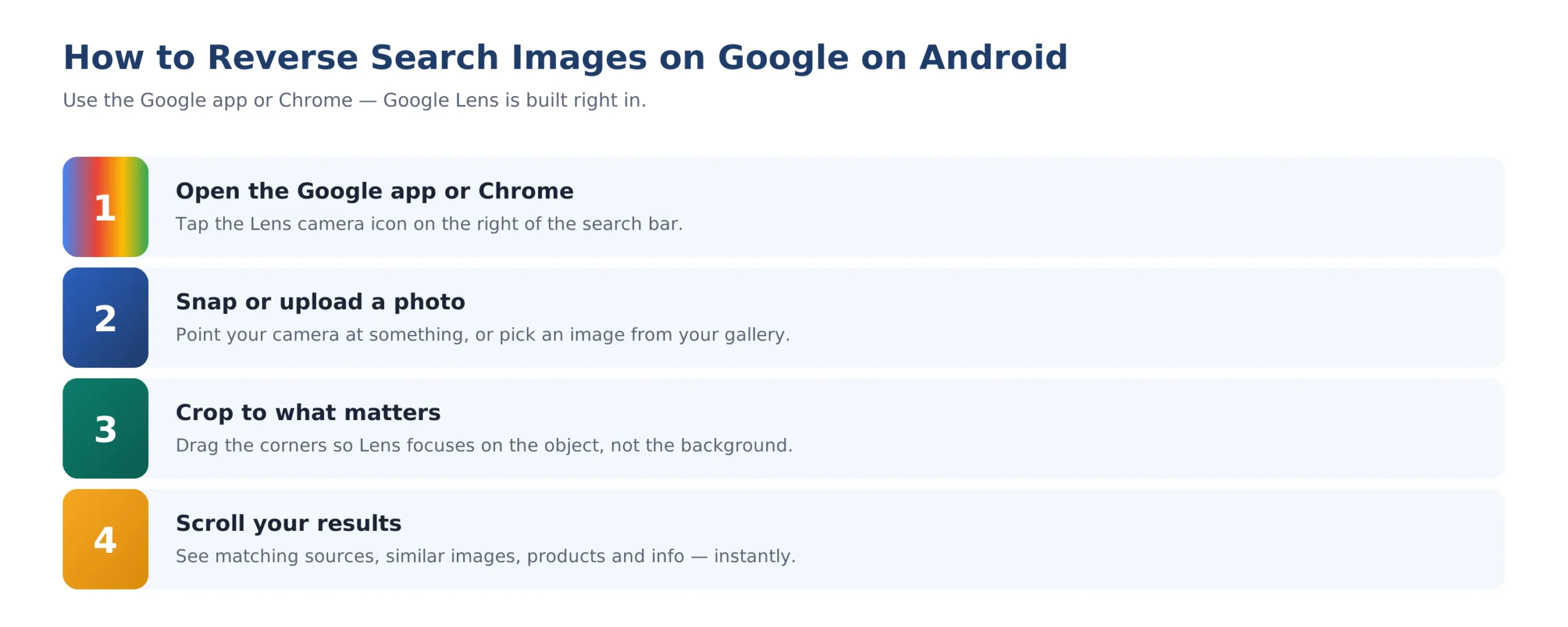
The Standard Android Method Using the Built-In Lens Icon
- Open the Google app or Chrome. Tap the Lens camera icon on the right side of the search bar.
- Snap or upload a photo. Point your camera at something live, or choose an existing image from your gallery.
- Crop to what matters. Drag the corners so Lens focuses on the object rather than the background.
- Scroll your results. You’ll see matching sources, similar images, products, and information instantly.
This is also the answer to a common question — how to reverse Google image search on Android without any extra apps: the Google app and Chrome already have Lens built in, so there’s nothing else to install. Whether you call it a reverse search or a Google image reverse search on Android, it’s the same built-in Lens doing the work.
How to Google Search an Image on Android with Circle to Search
SHORT ANSWER
Long-press your home button or navigation handle to launch Circle to Search, then circle, highlight, or tap any image on your screen. It’s the fastest way to search a picture without leaving the app you’re in.
Circle to Search is Google’s newest shortcut, and for many people it’s now the easiest way to Google search an image on Android. Because it works on top of whatever is on your screen, you never have to save, switch apps, or upload anything.
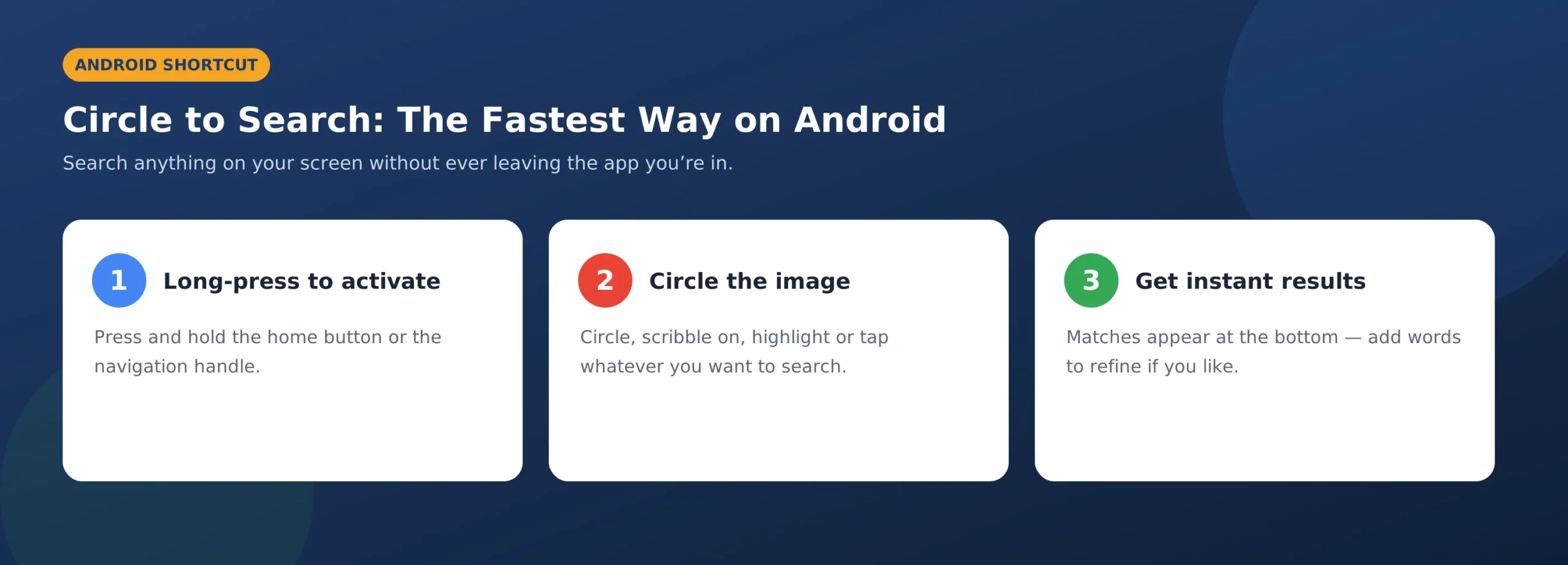
Circle to Search: Activate, Circle, and Get Results
- Long-press to activate. Press and hold the home button (three-button navigation) or the navigation handle (gesture navigation).
- Circle the image. Circle, scribble on, highlight, or tap whatever you want to search: a product, a landmark, a face.
- Get instant results. Matches appear at the bottom of the screen. Add a few words to the search bar to refine them if needed.
INDUSTRY FACT
Google Lens now handles roughly 20 billion visual searches every month, and Circle to Search has rolled out to hundreds of millions of Android devices; searching by image is fast becoming as normal as typing.
How to Reverse Image Search on iPhone (iOS)
SHORT ANSWER
Install the free Google app or Chrome, tap the Lens icon in the search bar, then take a photo or pick one from your camera roll. iPhone has no built-in reverse search, but these apps add it in seconds.
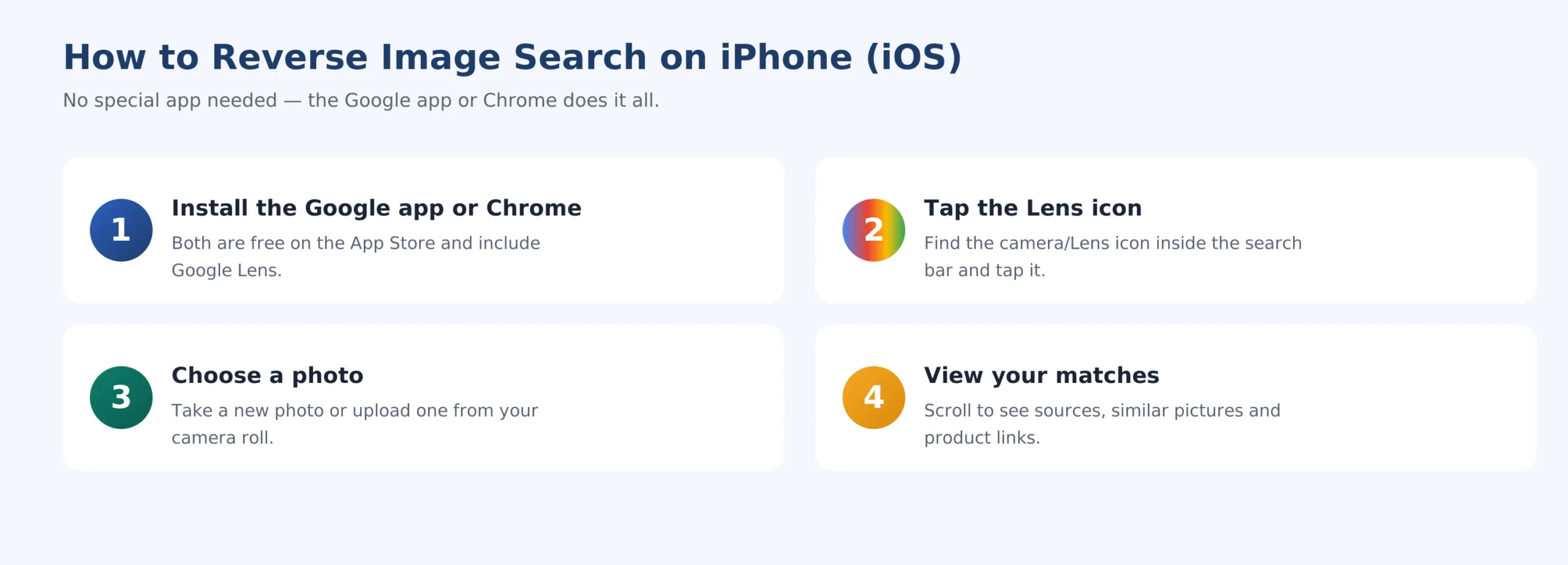
The iPhone Method Using the Free Google App or Chrome
- Install the Google app or Chrome. Both are free on the App Store and include Google Lens.
- Tap the Lens icon. Find the camera/Lens icon inside the search bar and tap it.
- Choose a photo. Take a new photo or upload one from your camera roll.
- View your matches. Scroll to see sources, similar pictures, and product links.
What Can You Use Reverse Image Search For?
SHORT ANSWER
Far more than finding a bigger photo. Use it to trace a picture’s source, spot fakes and scams, shop a product, identify plants or landmarks, protect your own images, and find higher-quality versions.
Everyday Uses That Make Reverse Image Search Worth Learning
- Find the original source. Trace where a photo first appeared, essential for fact-checking and crediting creators.
- Spot fakes and scams. Check dating profiles, marketplace listings, and “too-good” deals before you trust them.
- Shop the look. Identify a product in a photo and find where to buy it, or a cheaper lookalike.
- Identify almost anything. Name a plant, animal, landmark, artwork, or gadget in a single tap.
- Protect your own images. See who else is using your photos across the web, useful for photographers and brands.
Pro Tips for Better Reverse Image Search Results
- Crop before you search. Isolating one object beats searching a cluttered full image every time.
- Use the clearest version you have. Higher resolution gives Lens more detail to match against.
- Add words to refine. Combine the image with a keyword, like “price” or “recipe”, to steer the results.
- Try more than one frame. If the first photo doesn’t match, a different angle or screenshot often will.
For the official reference, Google documents the current steps in its Search with an image on Google help pages, which are worth a bookmark as the interface keeps evolving.
Frequently Asked Questions
1. What is a reverse image search, in simple terms?
It’s searching with a picture instead of words. You give Google an image, and it finds where that image appears online, what’s in it, and visually similar photos.
2. How do I reverse Google image search on Android?
Open the Google app or Chrome, tap the Lens camera icon in the search bar, and snap or upload a photo. For anything on your screen, long-press to launch Circle to Search and circle it.
3. Can I do a reverse image search on my iPhone?
Yes. iOS has no built-in tool, but the free Google app or Chrome both include Google Lens. Tap the Lens icon in the search bar and choose a photo.
4. Is Google reverse image search free?
Completely. Every method — Lens, Circle to Search, right-click on desktop — is free to use, with no account or subscription required.
5. Why are my results not accurate?
Usually the image is too busy or low quality. Crop to the single object you care about and use the clearest version you have; accuracy improves dramatically.
Conclusion
Once you know how it works, a Google reverse image search becomes a reflex, the quickest way to answer “what is this?” or “where is this from?” on any device. With Google Lens now powering desktop, Android, and iPhone alike, the skill is the same everywhere: give it a picture, crop to what matters, and let it do the rest.
Try it once on something you’re curious about right now — a product, a plant, a screenshot — and it’ll quickly become a tool you reach for every week.